Jun 24, 2026
|
5
min read

Share It On:
Introduction
WhatsApp supports built-in transcription for only around 15 languages. Yet over 7 billion voice messages get sent on WhatsApp every single day across hundreds of languages. That gap is the reason most people who receive a voice note in a foreign language have no choice but to replay it multiple times hoping to catch a familiar word.
Here is how to translate voice message on WhatsApp in under a minute: export the voice note from the chat, run it through a dedicated voice translation app or tool, select your target language, and get a translated transcript instantly. The method varies slightly depending on whether you are on Android, iPhone, or WhatsApp Web, but the result is the same.
This guide covers every working method to translate WhatsApp voice messages in 2026, including the built-in WhatsApp transcription feature, third-party apps, keyboard tools, and web-based solutions, so you can pick what fits your device and situation.
Why Are WhatsApp Voice Messages So Difficult to Translate?
Understanding why WhatsApp voice message translation is limited helps you choose the right tool for your specific situation. The problem is not one thing. It is several limitations stacked on top of each other.
1. WhatsApp Built-in Transcription Covers Only Around 15 Languages
WhatsApp launched a native voice message transcription feature but it only works for a small number of languages. Users sending voice notes in Arabic, Hindi, Bengali, Punjabi, Kannada, Tamil, Telugu, Azerbaijani, and Polish get nothing from the built-in tool. The feature transcribes but does not translate, meaning even where it works you still need a second step to understand a message in a foreign language.
2. Transcription and Translation Are Two Separate Steps
Most people searching for how to translate voice message on WhatsApp do not realize there are two steps involved. First, the spoken audio must be converted to text through transcription. Second, that text must be translated into the target language. Very few tools handle both steps in one flow without manual copying in between.
3. Accents, Background Noise, and Mixed Languages Break Generic Tools
Generic translation tools trained on clean studio audio fail on real WhatsApp voice notes. Real messages contain background noise, heavy accents, regional dialects, and sometimes two or three languages mixed within a single voice note. Purpose-built WhatsApp voice message translation tools handle this far more accurately than any general-purpose solution.
4. No Native Translation for Voice Notes on WhatsApp Web
WhatsApp Web has no built-in transcription or translation feature at all for voice notes. Desktop users who receive foreign language voice messages have no native option. Every solution for WhatsApp Web requires a third-party tool.
How to Translate Voice Message on WhatsApp: Every Method
There are four practical methods to translate WhatsApp voice messages in 2026. Each works for specific devices and situations. Work through the one that matches your setup.
1. Use WhatsApp Built-in Transcription on Android and iPhone
WhatsApp added a native voice message transcription feature that converts spoken audio to text directly inside the chat. It works for supported languages only and transcribes rather than translates, so you still need a translation step for foreign language messages.
Step 1: Open WhatsApp and find the voice message you want to transcribe
Step 2: Tap and hold the voice note bubble until the options menu appears
Step 3: Tap "Transcribe" and wait a few seconds for WhatsApp to process the audio
Step 4: The transcribed text appears below the voice note inside the chat
Step 5: Copy the transcribed text, open Google Translate or any translation app, paste it, select your target language, and read the translation
This method works well for supported languages but adds a manual copy-paste step between transcription and translation. If your language is not supported, the Transcribe option will not appear.
2. Export the Voice Note and Translate Using a Third-Party App
This is the most reliable method to translate WhatsApp voice messages across every language including those WhatsApp's native tool does not support. Exporting the audio file and running it through a dedicated voice translation tool gives you transcription, translation, and language detection in one flow.
Step 1: Open WhatsApp and find the voice note you want to translate
Step 2: On Android, long-press the voice note and tap the share or forward icon. On iPhone, tap and hold the voice note bubble and select "Share"
Step 3: Save the audio file to your device. WhatsApp voice notes save as .opus or .m4a files
Step 4: Open your chosen voice translation app such as Google Translate, Microsoft Translator, or any dedicated audio translation tool
Step 5: Import the saved audio file into the app and select your target language
Step 6: Let the tool process the audio and return a translated transcript in seconds
This method works for every language and every device. It is the most complete answer to how to translate voice message on WhatsApp when the native feature is unavailable or unsupported.
3. Use Google Translate Conversation Mode for Real-Time WhatsApp Voice Translation
Google Translate has a conversation mode that listens to spoken audio and translates it in real time. While it does not directly import WhatsApp voice notes, it works effectively when you play a WhatsApp voice message through your phone speaker and let Google Translate listen.
Step 1: Open the WhatsApp voice note you want to translate
Step 2: Open Google Translate on the same device or a second device nearby
Step 3: Tap the microphone icon in Google Translate and select your source language or use auto-detect
Step 4: Play the WhatsApp voice note through your speaker at a reasonable volume
Step 5: Google Translate listens and returns a real-time translated transcript as the audio plays
This method works without exporting any file and handles most major languages accurately. It is the fastest workaround to translate WhatsApp audio messages on the spot without any file management steps.
4. Transcribe and Translate WhatsApp Voice Notes Using a Web Tool
For WhatsApp Web users who cannot export files easily or prefer a browser-based solution, several web tools accept audio uploads and return full translated transcripts.
Step 1: On your computer, open WhatsApp Web and find the voice note you want to translate
Step 2: Right-click the voice note and save it to your computer if your browser allows, or forward it to yourself and download it
Step 3: Go to a web-based audio transcription and translation tool in your browser
Step 4: Upload the audio file, select the source language or use auto-detect, and choose your target language
Step 5: The tool processes the file and returns a full translated transcript you can read directly in the browser
How to Translate WhatsApp Voice Messages on Android in 2026?
Android users have the most options to translate WhatsApp voice messages because of Google's deep integration across its apps and WhatsApp's own growing feature set on Android.
1. Use WhatsApp Native Transcription on Android Where Available
On Android, WhatsApp's built-in transcription appears as an option when you long-press a supported voice note. Enable it in WhatsApp Settings > Chats > Voice Message Transcripts and set your preferred language. Once enabled, transcription happens automatically for every new voice note in supported languages without any extra steps.
2. Use Google Translate Audio Import on Android
Step 1: Long-press the WhatsApp voice note and tap the share icon
Step 2: Select "Save to Files" or share directly to Google Translate if that option appears in the share sheet
Step 3: In Google Translate, use the transcribe feature to process the saved audio file and return a translated result in your target language
3. Use Microsoft Translator on Android for WhatsApp Voice Note Translation
Microsoft Translator supports audio file import and handles a wide range of languages with strong accuracy for business and technical vocabulary. Download the app, import the exported WhatsApp voice note, select your target language, and get a full translated transcript with one tap.
How to Translate WhatsApp Voice Messages on iPhone in 2026?
iPhone users have slightly fewer native options than Android for WhatsApp voice message translation but the workflow is equally fast with the right tools.
1. Use WhatsApp Transcription on iPhone for Supported Languages
WhatsApp's native transcription feature is available on iPhone for supported languages. Go to WhatsApp Settings > Chats > Voice Message Transcripts, enable it, and set your language. Long-press any voice note in a supported language and tap Transcribe to get the text version directly inside the chat.
2. Use Apple Translate App with Exported WhatsApp Audio
Step 1: Tap and hold the WhatsApp voice note and tap Share
Step 2: Save the audio file to the Files app on your iPhone
Step 3: Open the Apple Translate app and tap the microphone button
Step 4: Play the saved voice note through your iPhone speaker at full volume while Apple Translate listens
Step 5: Select your source and target languages and Apple Translate returns a real-time translation as the audio plays
3. Use a Dedicated Voice Translation App on iPhone
Apps available on the App Store designed for audio transcription and translation accept WhatsApp voice note exports directly through the iOS share sheet. Tap Share on the voice note, find the translation app in the share options, and the app receives the file and processes it automatically without any manual steps between export and translation.
How to Convert WhatsApp Voice Message to Text Before Translating?
Sometimes you need the text version of a WhatsApp voice note before translating it, either to search it, quote it, or share just the written content. Here is how to convert WhatsApp voice message to text accurately.
1. Use WhatsApp Built-in Transcription to Convert Voice to Text
Enable voice message transcripts in WhatsApp Settings > Chats > Voice Message Transcripts. For every new supported voice note you receive, a "Transcribe" option appears when you long-press the bubble. The transcript appears directly below the audio in the chat and can be copied as plain text immediately.
2. Use an Online Audio to Text Tool for Unsupported Languages
Export the WhatsApp voice note and upload it to any web-based speech to text tool. Most tools return a full transcript in the original language within seconds. Once you have the text, paste it into any translation tool to complete the WhatsApp voice note translation in two quick steps without needing any app installation.
Tips for More Accurate WhatsApp Voice Message Translation
1. Use Auto-Detect Language for Unfamiliar WhatsApp Voice Notes
If you have no idea which language a WhatsApp voice note is in, use auto-detect mode in your translation app rather than guessing the source language manually. Auto-detect is accurate for most major languages and removes the risk of running a translation between the wrong language pair entirely.
2. Play Voice Notes at Full Volume When Using Listen Mode to Translate WhatsApp Audio
If you are using Google Translate or Apple Translate in microphone mode to listen to a playing voice note, make sure the volume is at maximum and the room is quiet. Background noise is the single biggest cause of inaccurate WhatsApp audio translation when using listening-based methods.
3. Export the Audio File for Better Accuracy When Translating WhatsApp Voice Messages
Directly importing an exported audio file into a translation tool is always more accurate than playing the audio through a speaker and having a second tool listen to it. File import avoids double processing and background interference, giving you a cleaner WhatsApp voice note translation every single time.
4. Verify Numbers, Dates, and Names Manually After Translating WhatsApp Voice Notes
Translation tools handle conversational speech accurately but stumble on numbers, specific dates, proper nouns, and technical terms. Any WhatsApp voice message containing pricing, deadlines, or names should have those specific details verified manually after translation to avoid costly misreads.
You Can Also Translate WhatsApp Web Messages in 1 Click
With the WhatsApp Translator, you can easily Translate WhatsApp Web Messages to English and communicate globally without effort.
If you often use WhatsApp on your desktop, there's a smart way to translate messages without switching tabs. With a WhatsApp translator extension on your browser, you can instantly translate incoming and outgoing messages directly on WhatsApp Web.
Step 1: Install the WhatsApp Translator Extension
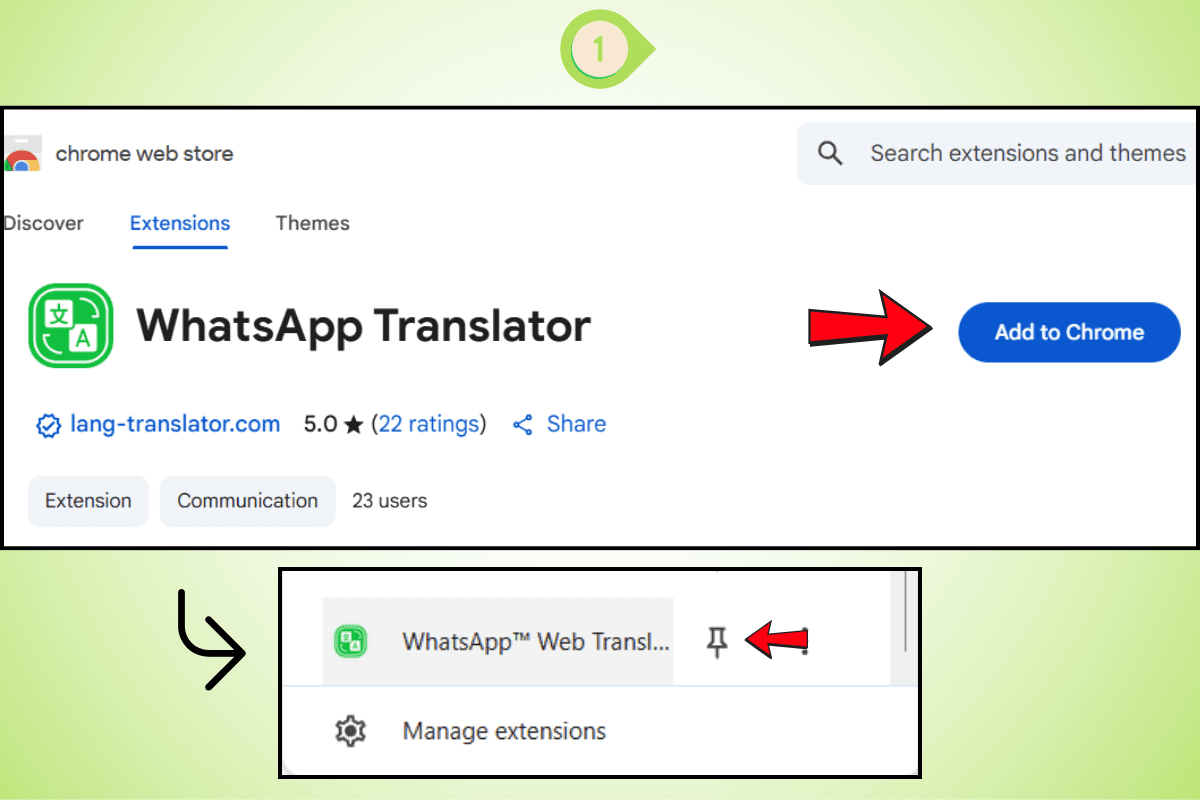
Add the WhatsApp Translator Extension from the Chrome Web Store and pin it to your browser for easy access.
Step 2: Detect Any Language
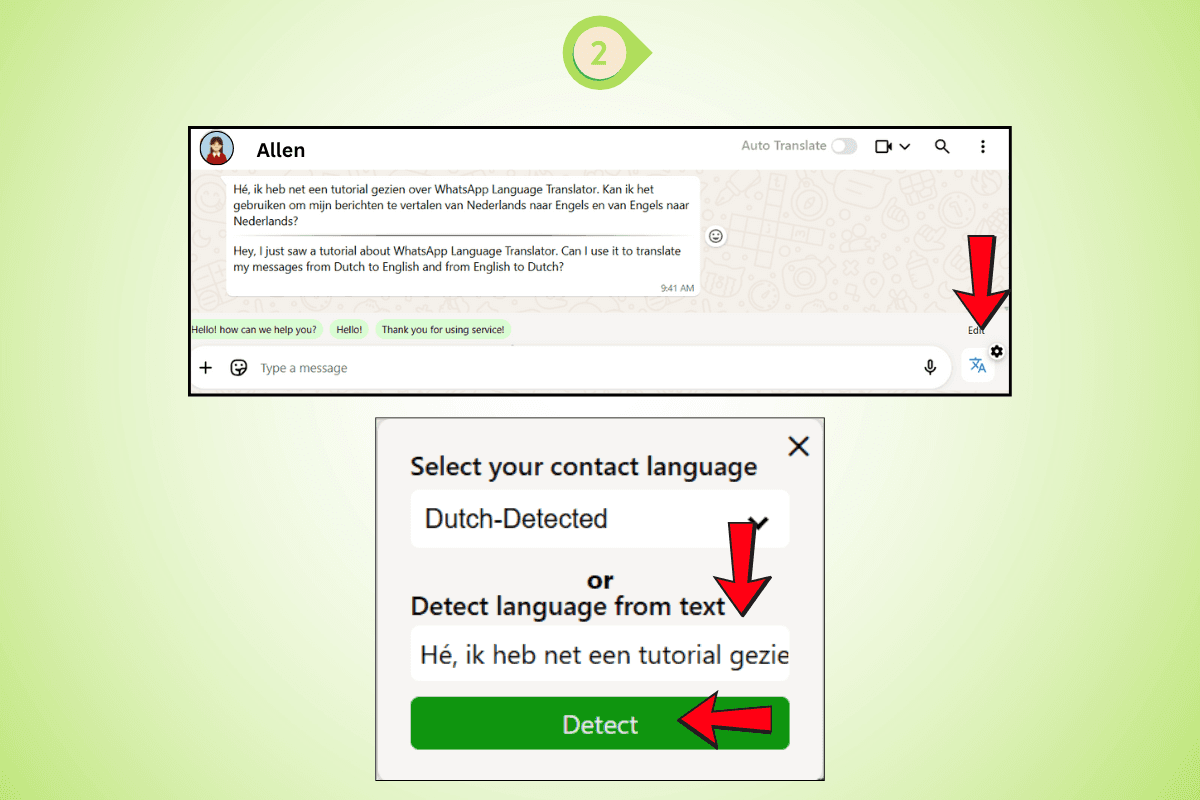
Paste the message. The WhatsApp translator automatically detects the language.
Step 3: Reply in the Same Language
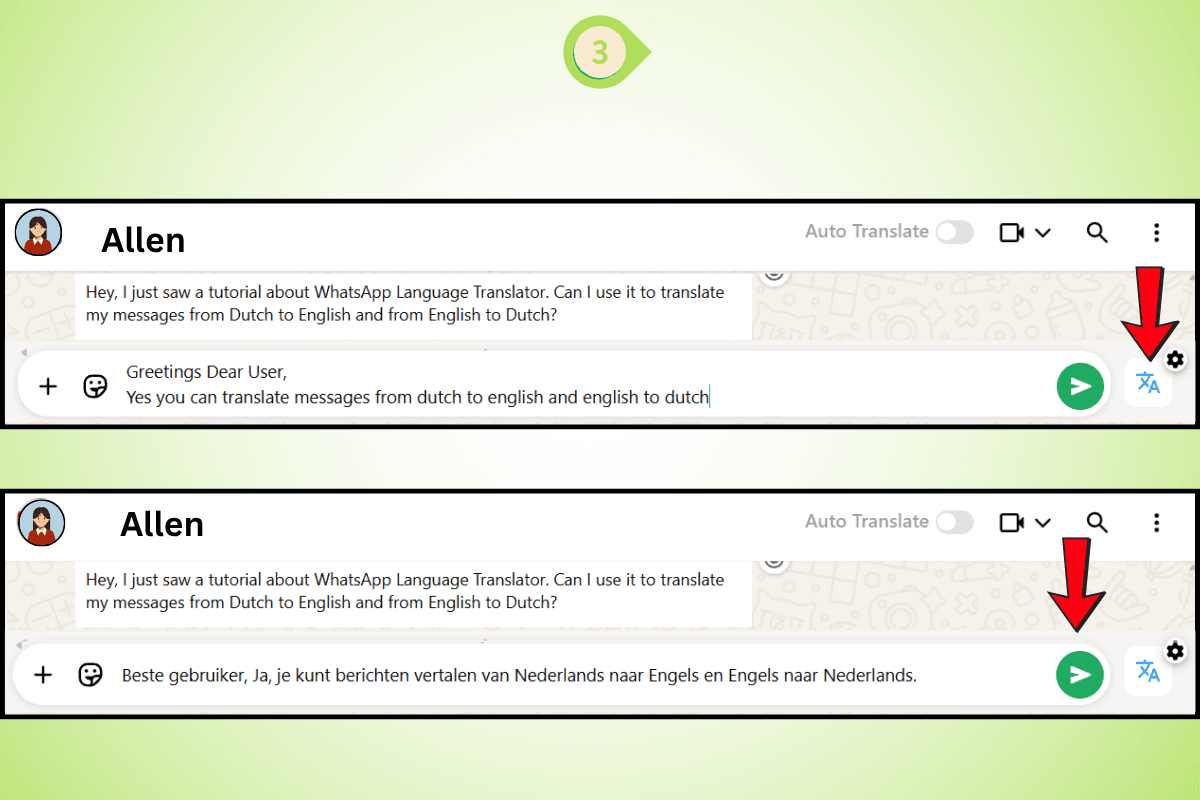
Type your response. The translator for WhatsApp will convert your reply accurately.
Step 4: Auto-Translate While Typing
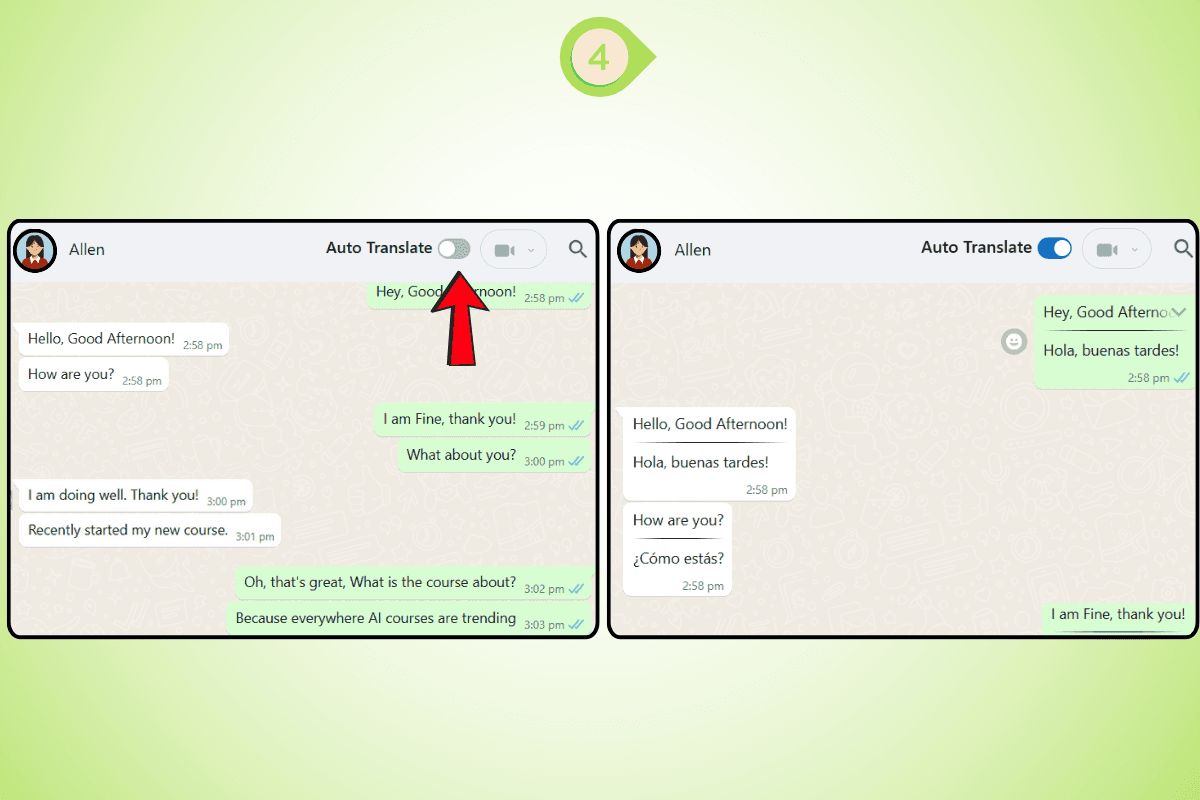
Turn on auto translate WhatsApp. Your messages are translated live, as you type. This process uses WhatsApp automatic translation and ensures fast and efficient multilingual WhatsApp chats.
Conclusion
Knowing how to translate voice message on WhatsApp is no longer a niche skill. With billions of voice notes crossing language barriers every day and WhatsApp's native transcription covering only a fraction of the world's languages, having a reliable method on your specific device matters more than ever.
On Android, WhatsApp's native transcription combined with Google Translate handles most situations. On iPhone, the export and translate workflow through Apple Translate or a dedicated app fills the gap. On WhatsApp Web, exporting the audio file and using a browser-based transcription tool is the most complete solution available.
The next WhatsApp voice note you cannot understand is not a problem anymore. It is a two-step process you now know exactly how to run.
Frequently Asked Questions
How to Translate Voice Message on WhatsApp on Android?
To translate voice message on WhatsApp on Android, enable WhatsApp's built-in transcription in Settings > Chats > Voice Message Transcripts, then long-press any supported voice note and tap Transcribe to get the text directly inside the chat. For languages WhatsApp does not support, the most reliable way to translate voice message on WhatsApp on Android is to long-press the voice note, tap the share icon, save the audio file, and import it into Google Translate or Microsoft Translator for a full translated transcript.
Enable WhatsApp transcription in Settings > Chats > Voice Message Transcripts
Long-press the voice note and tap Transcribe for supported languages
Share and save the audio file for languages WhatsApp does not support
Import the saved file into Google Translate or Microsoft Translator
Select auto-detect for the source language and your preferred target language
How to Translate Voice Message on WhatsApp on iPhone?
To translate voice message on WhatsApp on iPhone, enable WhatsApp's transcription feature in Settings > Chats > Voice Message Transcripts and long-press any supported voice note to transcribe it inside the chat. For unsupported languages, the best way to translate voice message on WhatsApp on iPhone is to tap and hold the voice note, select Share, save the file to the Files app, and then play the audio through your speaker while Apple Translate listens in microphone mode with your target language selected.
Enable WhatsApp voice message transcripts in WhatsApp Settings > Chats
Long-press any voice note and tap Transcribe for supported languages
For unsupported languages, tap Share on the voice note and save to Files
Open Apple Translate, tap the microphone, and play the saved audio through your speaker
Use a dedicated voice translation app from the App Store for direct file import and faster results
Can WhatsApp Translate Audio Messages Automatically?
WhatsApp can transcribe voice messages automatically for around 15 supported languages when the feature is enabled in Settings > Chats > Voice Message Transcripts. However, WhatsApp does not translate audio messages automatically. To translate voice message on WhatsApp automatically in any language, you need a third-party tool that handles both transcription and translation in a single flow without manual copy-paste steps between the two.
WhatsApp transcribes automatically for supported languages when enabled in Settings > Chats
WhatsApp does not translate the transcribed text automatically
Copy the transcribed text and paste it into Google Translate for the translation step
For unsupported languages, export the voice note and use a dedicated voice translation app
No native end-to-end automatic translation exists inside WhatsApp for audio messages
How to Convert WhatsApp Voice Message to Text?
To convert WhatsApp voice message to text, enable transcription in WhatsApp Settings > Chats > Voice Message Transcripts and long-press any voice note in a supported language to get a text transcript directly inside the chat. For languages outside WhatsApp's supported list, the most reliable way to translate voice message on WhatsApp and convert it to text is to export the audio file and run it through an online speech to text tool or a translation app that supports audio file import.
Go to WhatsApp Settings > Chats > Voice Message Transcripts and enable the feature
Long-press any voice note and tap Transcribe for supported languages
For unsupported languages, share the voice note and save the audio file to your device
Upload the saved file to an online audio transcription tool or Google Translate
Copy the transcript text and paste it into any translation tool to complete the translation
What Is the Best Way to Translate WhatsApp Audio Messages?
The best way to translate WhatsApp audio messages depends on your device and the language involved. For Android users, exporting the voice note and importing it into Google Translate gives the most accurate result across the widest range of languages. For iPhone users, a dedicated voice translation app from the App Store that accepts audio file imports gives the cleanest experience. To translate voice message on WhatsApp on desktop, exporting the file and using a browser-based audio translation tool is the only practical option since WhatsApp Web has no native transcription or translation feature for voice notes.
On Android: export the voice note and import into Google Translate for file-based translation
On iPhone: use a voice translation app from the App Store that accepts direct audio file imports
On WhatsApp Web: download the voice note file and upload it to a browser-based audio translation tool
For any device: use Google Translate conversation mode with microphone input while playing the voice note through your speaker
Always verify numbers, dates, and proper nouns manually regardless of which method you use